Picture WindowReleased
Free 4K photography for your TV's screensaver and home screen, refreshed every month. Like Google TV's ambient mode, minus Google, ads and tracking.
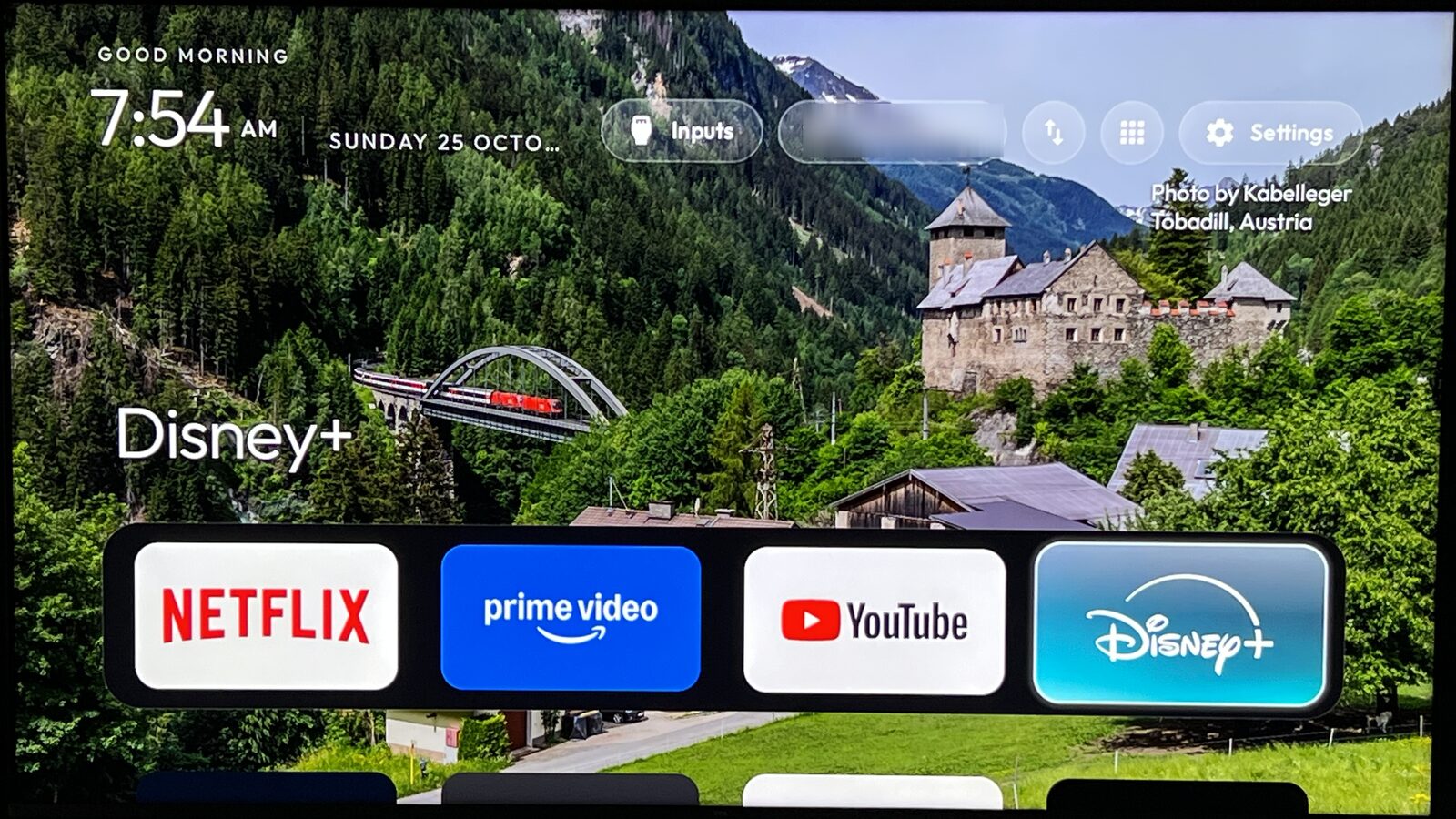
The design story
We bought our living room TV in 2019. It had slowed down enough that we were considering replacing it, even though the screen was still in perfect working condition. The home screen was full of sponsored tiles and things we hadn’t asked to watch.
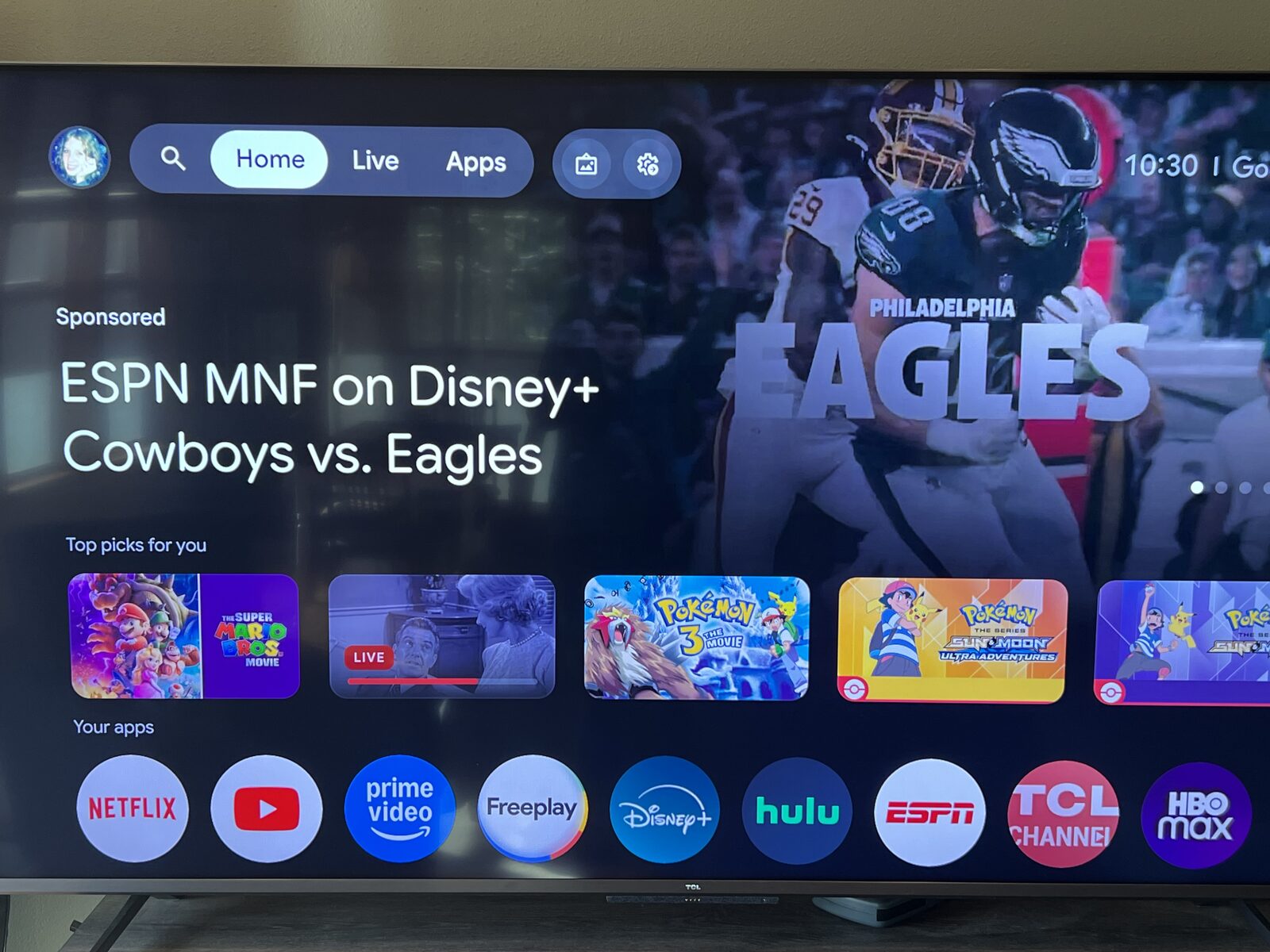
Then I came across this X post about cleaning the bloat off your TV.
The project is called CleanYourTV. It’s open source and replaces the cluttered Android or Google TV home screen with a simple dock of apps.
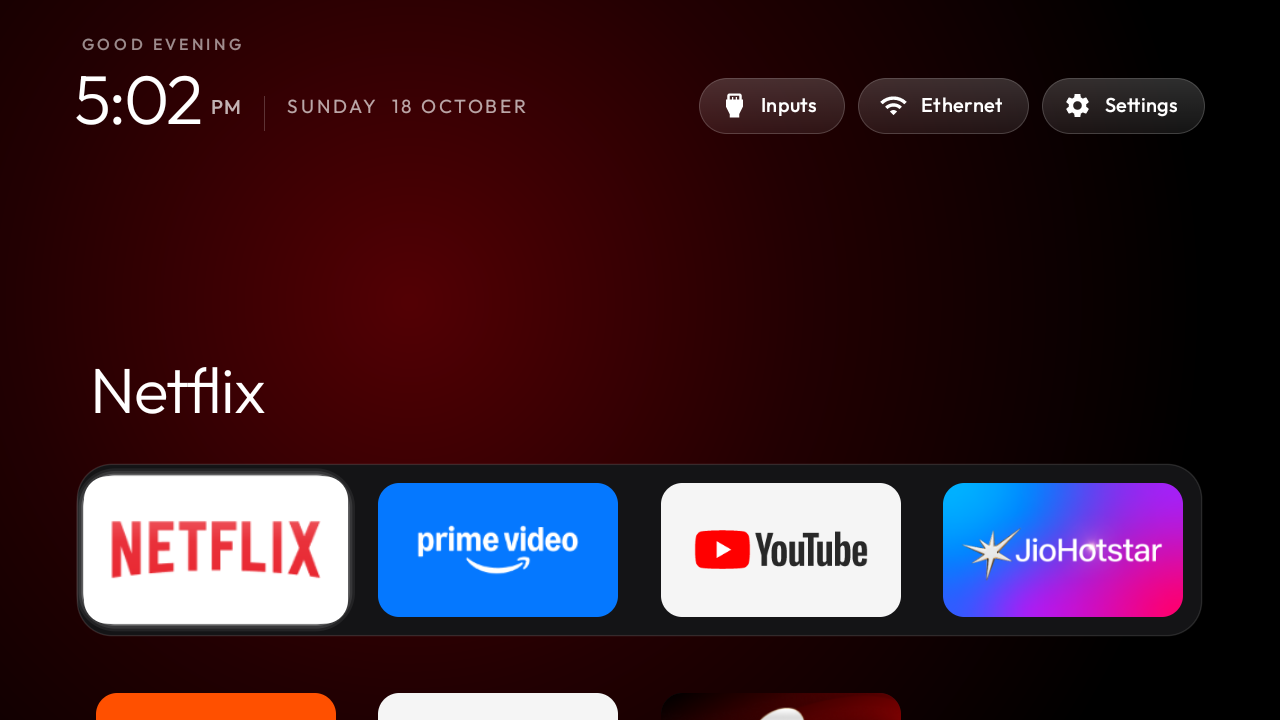
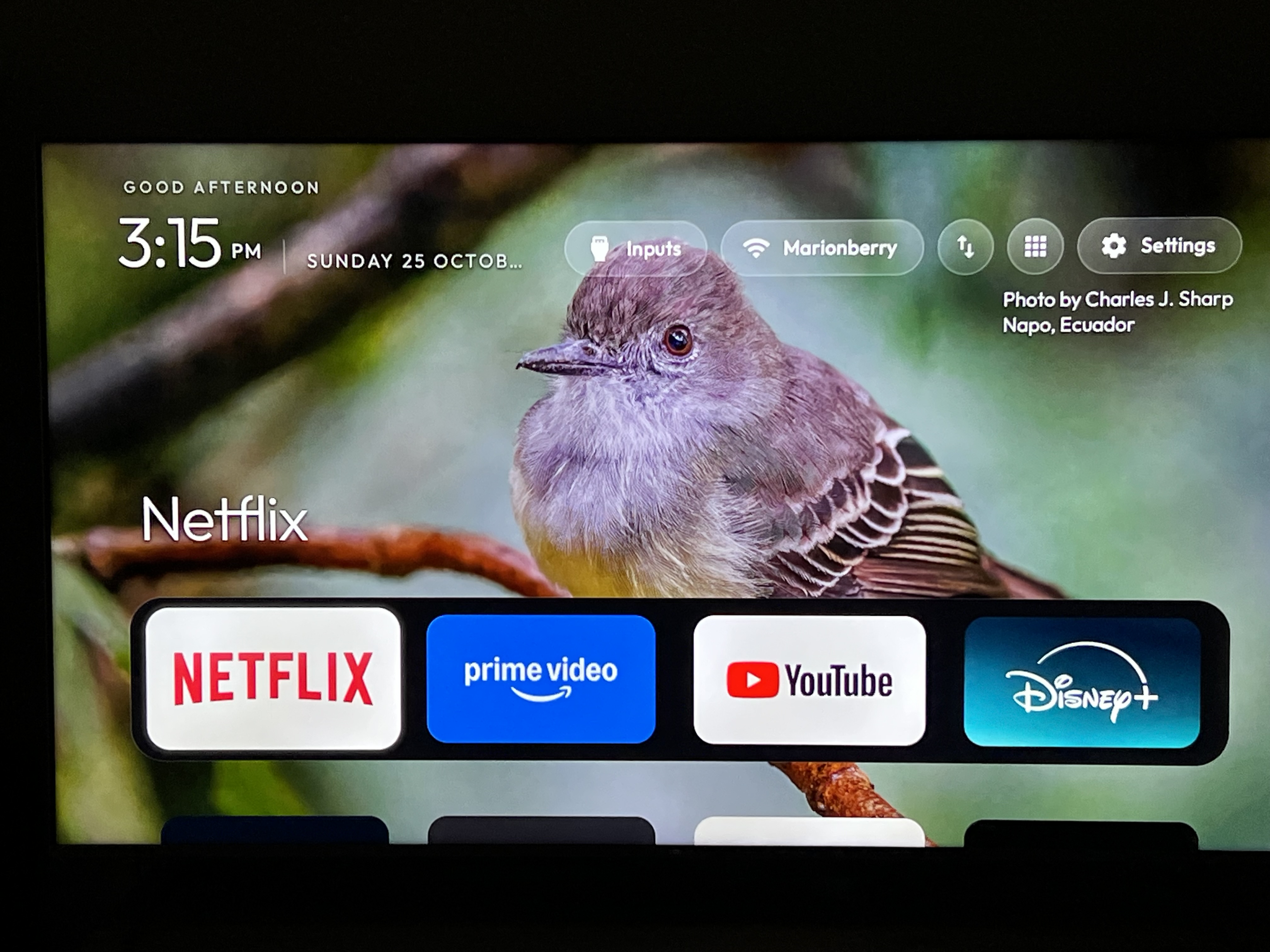
CleanYourTV cleared away the clutter, but I missed the photography. We’d unexpectedly come to love the TV as a picture window when nobody was watching it. I could turn Google’s ambient mode back on, but we’d already seen some of those photos hundreds of times.
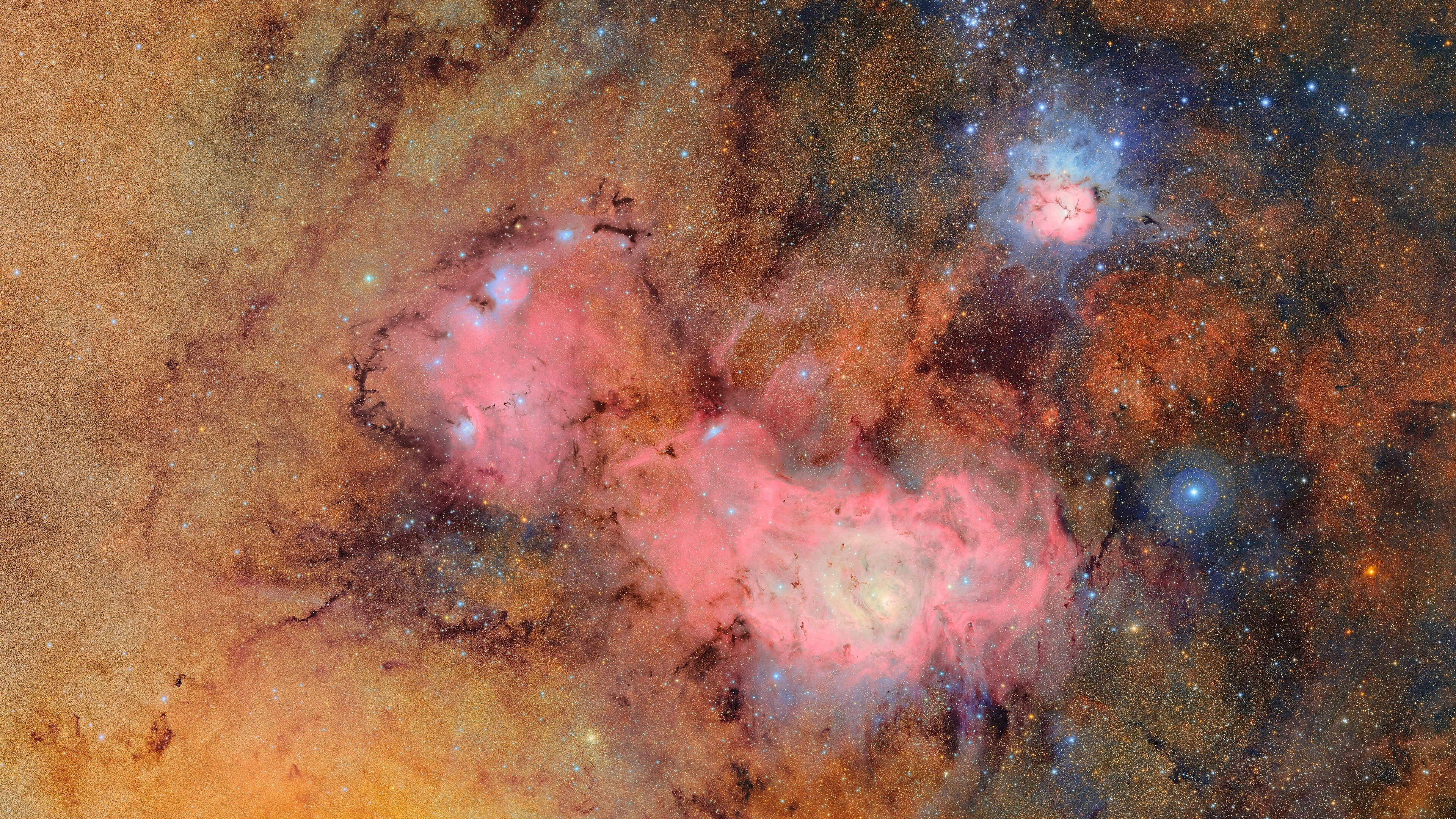
So I built Picture Window: a rotating collection of 4K photographs for the screensaver and the CleanYourTV home screen. The photos come from Wikimedia Commons Featured Pictures, the images the Commons community has voted the best of its collection.
When the TV is idle, Picture Window fills the screen with a new photo every three minutes, with a description and location where available. Return to the CleanYourTV home screen and the same photo sits behind the app dock, with the photographer’s credit and location where available.
Each month, an automated process finds a fresh batch of photos. I review them before publishing to keep the collection family-friendly. The TVs check for updates daily and pick up new photos on their own. If the internet goes down, they keep showing the photos they already have.
The photo feed runs on GitHub’s free hosting. There are no ads or subscriptions, and you can restore the original screensaver if you change your mind. The installation guide below covers adding Picture Window to CleanYourTV and installing it on your own TV.
It’s all open source on GitHub: the TV app and the photo feed.
The screen was still good. Now, what’s on it is worth looking at too.
The build
6 steps- 01
Install CleanYourTV
Android TV & Google TV · a computer on the same networkStart with the MTD etc. version of CleanYourTV, which adds Picture Window support to the original. Clone it, then follow its instructions for your TV model to remove the clutter and install its simpler home screen. Picture Window runs on Android TV 8 or newer and Google TV. For a Roku TV, use a compatible Google TV box plugged into HDMI. Once the clean home screen is working, the Build Pack walks through installing Picture Window on your TV.
Install CleanYourTV- Works on
- Android / Google TV
- Cost
- Free
- 02
Install Picture Window
Set up the photo screensaver and check that the first photos arrive.
- 03
Bring the photos onto your home screen
Connect CleanYourTV to Picture Window so the wallpaper follows the screensaver.
- 04
Choose your screensaver settings
Set the idle timeout and choose whether to show the clock.
- 05
Check photo and app updates
New photos arrive automatically. Install app updates from the TV.
- 06
Troubleshoot or restore your setup
Check common setup issues and return to the original screensaver if needed.
Gallery
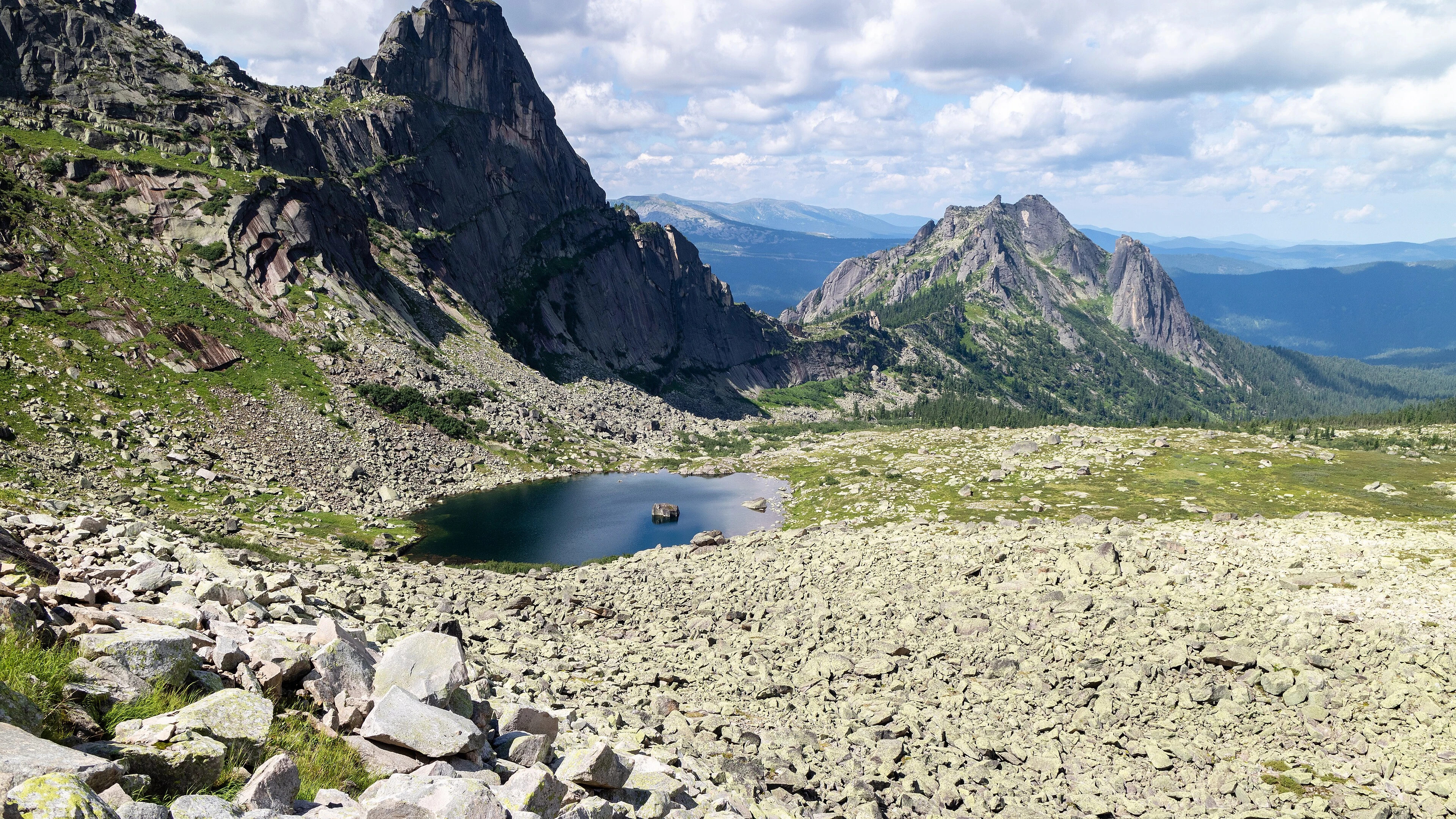
Screensaver previews, using photos from the Picture Window collection.


Lessons learned
- Most TVs draw apps at 1080p but play video at full 4K, so every photo also ships as a one-frame 4K video.
- TCL TVs block background jobs for apps that don't have TCL's own auto-start permission, so the daily sync needed one extra setting.
- Keyword filters miss context, like a war memorial filed under "nature". A five-minute human review each month catches what they miss.
If I made a v2
- Personal photo albums, if Google ever opens its Photos API back up.